

To add analytics to a plain HTML website, paste one script tag into the <head> of every HTML file you publish, then upload the files again. A plain HTML site has no plugin system or settings page, so the tag only runs on pages where it physically appears. That makes coverage the real job. If you miss your 404 page or an old landing page, your numbers will be quietly wrong, and nothing will warn you.
TL;DR:
- A plain HTML site tracks visitors only on pages that contain the analytics script tag, so you have to put it in every file.
- Load the tag with
deferbefore</head>. It downloads in parallel and runs only after the page is parsed, so it won't block rendering.- Use multi-file find-and-replace, a server-side include, or a build step to add the tag once instead of editing 40 files by hand.
- A cookieless tool can remove the need for a consent banner. Confirm how it identifies visitors before you rely on that.
- Check coverage with
grep -L, and add your own domain to any Content-Security-Policy header, or the script will be blocked without any visible error.
Table of Contents
- Why a Plain HTML Website Has No Analytics Setting, and Why That Helps You
- Step by Step: Adding the Analytics Tag to a Plain HTML Website
- Getting One Tag Onto 40 Pages Without Missing Any
- Defer, Async or Inline: Which Loading Method Keeps Your Pages Fast
- Cookies, Consent and the Banner Question on a Static Site
- Checking It Works, and Four Mistakes That Hide Traffic
- What to Watch Once the Numbers Arrive
- See Your HTML Site Next to Every Other Site You Run, With No Banner
- Frequently Asked Questions
- Sources
Why a Plain HTML Website Has No Analytics Setting, and Why That Helps You
Shopify, Squarespace, Wix and Webflow each give you a box labeled something like "header code" or "tracking." You paste the snippet in once and the platform adds it to every page for you. A plain HTML website has no such box. Each .html file is a separate document, and the browser runs only what is written in that file.
This sounds like a drawback, but it gives you full control. No theme update can strip your tag out. No platform adds its own tracking next to yours. You can see exactly what loads on every page. What you lose is the safety net. If a file doesn't contain the tag, its visitors never show up in your reports, and no error tells you so.
The rest of this guide covers three things: getting the tag onto every file, loading it so it doesn't slow your pages, and checking that it actually works. If you haven't chosen a tool yet, start with our comparison of website analytics tools that don't need a consent banner.
Step by Step: Adding the Analytics Tag to a Plain HTML Website

1. Copy the exact snippet from your analytics dashboard
Every service generates its own tag, usually with a site ID built in. It typically looks something like this:
<script defer src="https://your-analytics-host.example/script.js" data-site="YOUR-SITE-ID"></script>
Copy the tag your provider gives you rather than retyping it. One wrong character in the site ID sends your data nowhere.
2. Paste it just before the closing </head> tag
Placing the tag in the <head> with defer lets the browser find it early and download it while the rest of the page loads. The browser waits until the page is fully parsed before running it. MDN's reference for the script element describes this behavior: deferred scripts run in document order after parsing finishes, before the DOMContentLoaded event.
3. Repeat for every HTML file, including the ones you forget about
Go through your folder, not your navigation menu. The files people usually miss are 404.html, old campaign landing pages, thank-you pages after a form submission, and anything sitting in a subfolder like /blog/2019/.
4. Upload and clear any cache
Re-upload the changed files over FTP, Git, or however you deploy. If you use a CDN, purge its cache. Otherwise visitors may be served the old, untagged copies for hours.
Pro Tip: Add the tag to your 404 page even though nobody visits it on purpose. Once it's tagged, your top-pages report will show which broken URLs people actually land on. That usually means an old link from another site that you can fix with one redirect. Without the tag, that traffic is invisible and lost.
Getting One Tag Onto 40 Pages Without Missing Any
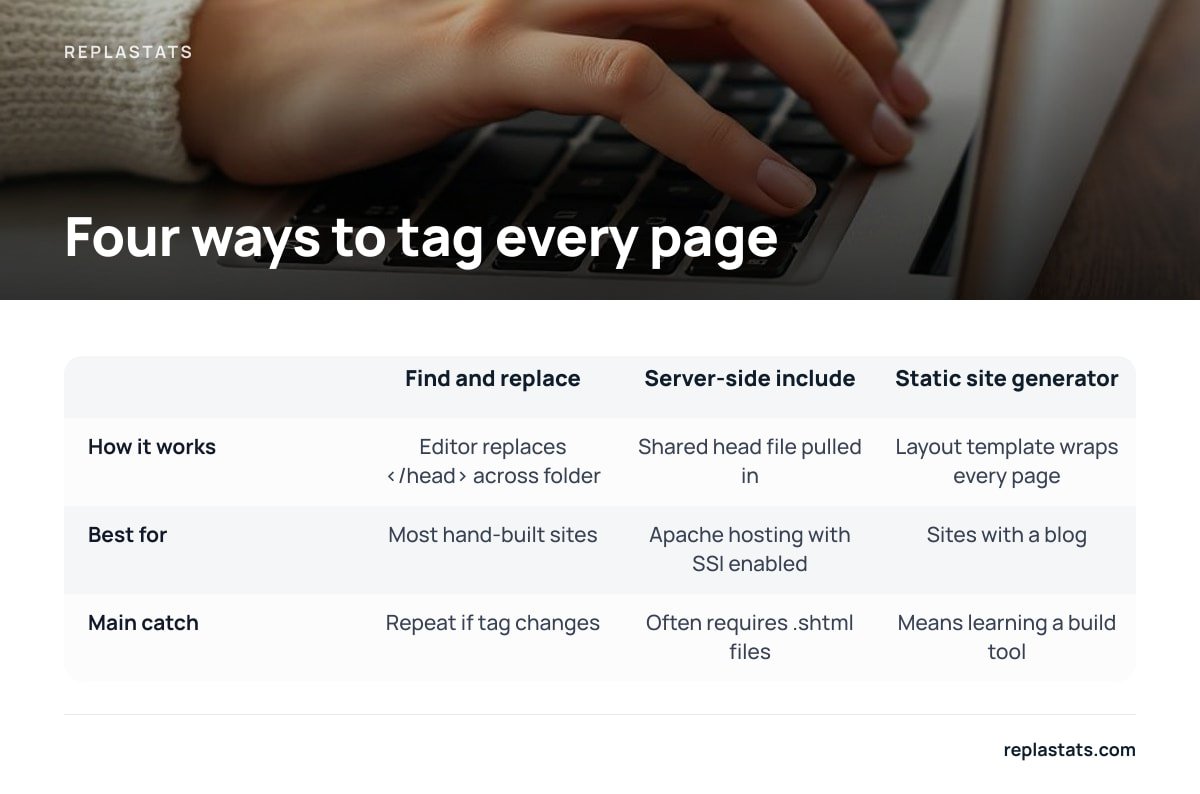
Editing files one at a time is fine for a five-page site. Past about a dozen pages, use one of the methods below. They all solve the same problem: they let you change the tag in one place later.
| Method | How it works | Best for | Main catch |
|---|---|---|---|
| Multi-file find and replace | Your code editor replaces </head> with [your tag]</head> across the whole folder |
Most hand-built sites | You'll repeat it if the tag ever changes |
| Server-side include | Apache's <!--#include virtual="/head.html" --> pulls a shared head file into every page |
Sites on Apache hosting with SSI enabled | Often requires .shtml files or server config changes |
| Static site generator | One layout template wraps every page at build time | Sites with a blog or frequent new pages | Means learning a build tool |
| Manual paste | Open each file and paste the tag | Under 10 pages | Easy to skip one |
Here is the option I would pick. For an existing hand-coded site, use your editor's multi-file find and replace, and target </head> exactly. It takes about two minutes and doesn't change how you work. If you already plan to add a blog, move to a static site generator. Then the tag lives in one layout file, and new pages get it automatically.
After any bulk edit, check for files that were missed. From your site's root folder, this command lists every HTML file that does not contain your site ID:
grep -rL --include="*.html" "YOUR-SITE-ID" .
An empty result means full coverage. Run it again whenever you add pages.
grep -Llists files that do not contain the match. On a plain HTML site, that one command is the closest thing you have to a coverage report.
Defer, Async or Inline: Which Loading Method Keeps Your Pages Fast
The defer attribute is the right default for analytics. The alternatives each have a cost:
async. The script runs the moment it finishes downloading, which can be in the middle of page parsing. For a small analytics tag that's usually harmless, but you gain nothing overdefer, and scripts withasyncrun in no guaranteed order.- No attribute. A plain
<script src>in the head blocks parsing until it downloads and runs. That delays everything visible on the page, which is the worst option for a tracking tag. - Inline code. Pasting the whole script into the page skips one network request. However, it means editing every file whenever the provider updates the code, and it complicates any security policy you use.
Speed matters beyond user experience. Google Search Central's Core Web Vitals documentation sets "good" thresholds of Largest Contentful Paint within 2.5 seconds, Interaction to Next Paint under 200 milliseconds, and Cumulative Layout Shift below 0.1. Plain HTML sites usually pass all three without effort. A heavy, render-blocking tag is one of the few things that can push them over. A small deferred script won't.
Cookies, Consent and the Banner Question on a Static Site

Your site being plain HTML has no effect on privacy law. What matters is what your analytics script stores or reads on the visitor's device. Article 5(3) of the EU ePrivacy Directive requires consent before information is stored on, or accessed from, a user's device, unless that is strictly necessary for a service the user asked for. Analytics cookies generally aren't strictly necessary, which is why so many sites show banners.
The UK's Information Commissioner's Office guidance on cookies and similar technologies makes an important point. The rules cover similar technologies, not just cookies. A tool that avoids cookies but stores an identifier in local storage, or fingerprints the browser, can still need consent.
So "cookieless" is the starting point. It doesn't settle the question by itself. Before you drop the banner, check three things in your tool's documentation:
- Device storage. Does the script write anything to cookies, local storage or session storage? It should not.
- Visitor identification. How does the tool count unique visitors without a stored ID? Look for a short-lived, salted hash that can't be reversed.
- Data location. Where is the data processed and kept, and is it shared with anyone?
If all three answers are clean, many site owners run without a banner. If you serve a regulated industry or handle sensitive data, a short conversation with counsel is cheap insurance. For a deeper checklist, see how to choose a cookie-free analytics tool.
Checking It Works, and Four Mistakes That Hide Traffic

Open your live site in a normal browser window, then check your analytics dashboard's real-time view. You should appear within a few seconds. If you don't, it's usually one of these causes:
- Opening the file directly. A page loaded from
file:///Users/you/site/index.htmlisn't on your domain, and most tools ignore it. Test on the live URL. - Your own ad blocker. Many privacy extensions block analytics domains. Test in a clean browser profile before you assume the install failed.
- A Content-Security-Policy header. If your server sends a CSP header, the script's domain must be allowed in
script-src, and the domain it reports data to must be allowed inconnect-src. If either is missing, the browser blocks the request. The only sign is a message in the developer console. - Cached pages at the CDN. If one page shows traffic and another doesn't, the second may still be served from an old cached copy.
A blocked Content-Security-Policy request shows no visible error on the page. The script simply never runs, so check the browser console's network and console tabs on day one.
What to Watch Once the Numbers Arrive
On a small static site, three reports matter: visitors over time, where they came from, and which pages they land on. Don't try to read everything in the first week. Look for one specific thing, such as a referring site you didn't expect or a page that gets more traffic than your homepage. Then act on it. Our guide to analyzing website traffic without drowning in dashboards walks through a routine that takes about ten minutes a week.
If the tool you've chosen charges more than a hobby site or small client site can justify, compare cheaper privacy analytics options before you commit to an annual plan.
See Your HTML Site Next to Every Other Site You Run, With No Banner
Replastats installs on a plain HTML site with exactly the setup described above: one 4.7 KB deferred script tag before </head>. It uses no cookies and stores nothing on the visitor's device, so most sites can run it without a consent banner. Data lives on a separate server, not in your hosting account. Your static site stays static.
Where it really helps is if your HTML site sits alongside a Shopify store, a Webflow portfolio or a WordPress blog. The Pro and Agency plans put every site on one board. The free tier covers a single site, and session replays and heatmaps start at Starter. One honest limit: Replastats can't tag your pages for you. You still have to get the snippet into every file, so run the grep check above after installing.
Frequently Asked Questions
Where exactly should the analytics script go in a plain HTML file?
Put it just before the closing </head> tag, using the defer attribute. The browser then downloads it early but runs it only after the page has been parsed, so it doesn't slow down rendering.
Do I have to add the tracking code to every HTML page?
Yes. A plain HTML site has no global settings, so each file runs only the scripts written inside it. Any page without the tag sends no data, and its visitors won't appear in your reports.
How can I add the analytics tag to many pages at once?
Use your code editor's multi-file find and replace to swap </head> for your tag followed by </head>. Alternatively, use a server-side include or a static site generator layout, so the tag lives in one shared file.
Does a plain HTML website need a cookie consent banner for analytics?
It depends on the analytics tool, not on your site being plain HTML. EU and UK rules require consent for storing or reading information on a visitor's device, and that includes cookies and similar technologies. A tool that stores nothing on the device often avoids that requirement.
Why isn't my analytics showing visits from my HTML site?
The most common causes are testing a local file instead of the live URL, your own ad blocker, a Content-Security-Policy header blocking the script, or a CDN serving old cached pages. Check your browser's developer console for blocked requests first.